
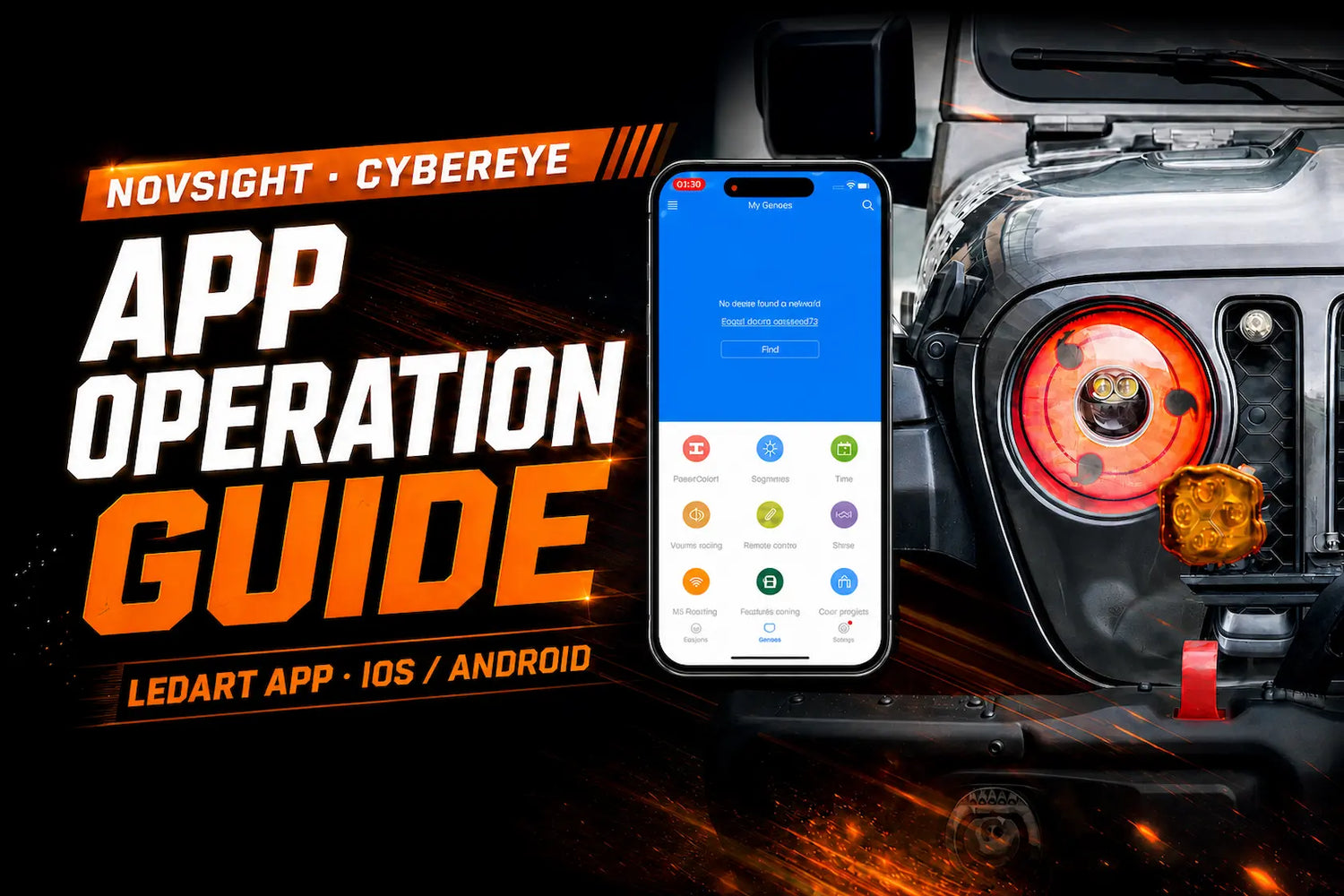
The Novsight Cyber Eye headlight isn't just a light — it's a 96×96 full-color LED display built into the grille of your headlight, and you control what it shows from your phone. The LedArt app lets you upload any photo, GIF, or video and send it straight to your headlight display in seconds, no wiring or programming required. This guide walks through every screen in the app, from downloading LedArt and the first Wi-Fi pairing to uploading custom art, adjusting brightness, and scheduling automatic on/off times — matching the walkthrough in our official video tutorial below.
Before You Start
- Your Cyber Eye headlight installed and powered on (ignition on / ACC on) — haven't mounted it yet? See our installation guide
- A smartphone with the LedArt app installed (App Store / Google Play — see below)
- The default headlight Wi-Fi password: anlee123
- A photo, GIF, or short video you'd like to display (optional — you can also use the app's built-in presets)
Download the LedArt App
Search for "LedArt" (by Shenzhen Huidu Technology) on the App Store or Google Play, or use the links below.
Download on the App Store Get it on Google Play

App Setup & Control Guide
Connect Your Phone to the Headlight's Wi-Fi
- Swipe down to open Control Center

- Long-press the Wi-Fi button to expand the connectivity panel

- Tap Wi-Fi to open the network list, then select the network that starts with D16 (e.g. D16-DB26-00235)

- Enter the default password anlee123, tap Join, and wait for the connection to succeed

- Your phone is now connected to the headlight's Wi-Fi

Connect the LedArt App to Your Headlight
- Return to the home screen and open the LedArt app

- Tap the Devices tab and wait for your headlight to appear

- Your device (BoxPlayer, D16) is now connected and ready to use

Create a New Display Screen
- Tap Programs, then tap New Screen

- Select your device (BoxPlayer) and tap Add

- Enter a Screen Name (or keep the default), then tap Done to confirm

Upload Your First Photo or Video
- Tap the "+" button in the bottom-right corner to add media

- Select the media type — this example uses Video (Image, GIF, Text, Clock, and other options are also available)

- You'll be directed to your phone's photo library — select your media, then tap Done

- Tap the Send icon (the orange button, top-right)

- On the Program Sending screen, tap Send and wait for the sync to complete

- The upload may take a moment — the headlight display shows a loading screen while it receives the data

- Once the upload completes, the headlight display shows your selected media

Add More Media to the Same Screen
- To add more media, tap "+" again and choose a new file. The headlight display keeps showing the previous media while the new one uploads

- Once the upload succeeds, the display switches to the new media

- Repeat the same steps to add a third file — tap "+", select and send it. Only one file uploads at a time, but there's no limit to how many you can add in total

Turn the Display On or Off Remotely
- Go back to Devices and tap Remote Control to turn the display on or off independently, without touching the headlight itself

- Use the power button, arrows, and keypad to control the display remotely

Adjust Display Brightness
- Tap Devices → Brightness

- Drag the slider to your preferred level (1%–100%), then tap OK

Play Multiple Media Files in Sequence
- On the Programs page, check the media files you want to play, then tap Send

- A confirmation pop-up will appear showing your device — tap Send once more to confirm. The media will now play in sequence, looping automatically on the headlight display

Rename a Media File
- To rename a media file, tap its name in the Programs list, enter a new name, then tap OK

Schedule Automatic On/Off Times
- If you'd like the screen to turn on and off automatically, tap Devices → PowerOn/Off

- Set your preferred on and off times, then tap OK. The headlight display will switch on and off on that schedule without any further action from you

Change the Headlight's Wi-Fi Password (Optional)
- In the LedArt app, go to Devices → Wi-Fi Setting

- Enter the current password (default: 888)

- Set a new password — it must be at least 8 characters and include both letters and numbers — then tap OK to confirm

- On your iPhone, go to Settings → Wi-Fi. The D16 network will show "No Internet Connection" since it's still using the old saved password

- Tap the network, then tap "Forget This Network" and confirm Forget — this clears the old saved password so you can rejoin with the new one

- Reconnect to the D16 network using your new password

- Once reconnected, the app works exactly as normal

FAQ
Where do I download the LedArt app?+
Search "LedArt" (by Shenzhen Huidu Technology) on the App Store or Google Play, or use the download links at the top of this guide.
Do I need internet or my home Wi-Fi to use the app?+
No. The Cyber Eye headlight broadcasts its own local Wi-Fi network (starting with D16). Your phone connects directly to that network to upload media — no home Wi-Fi or internet connection is required.
What's the default Wi-Fi password?+
The default headlight Wi-Fi password is anlee123. You can change it any time from Devices → Wi-Fi Setting in the LedArt app (default app-side password: 888).
What file types can I upload?+
Photos, GIFs, and short videos from your phone's photo library, plus built-in options like Clock, Text, Timing, Temperature, Humidity, and Sensor displays.
How many images or videos can I upload?+
There's no limit to the total number of media files you can add to a screen. Files upload one at a time, and the display keeps showing your previous media while the next one syncs.
Can I turn the display off without removing the headlight?+
Yes. Go to Devices → Remote Control in the LedArt app to turn the display on or off at any time, or set an automatic schedule under Devices → PowerOn/Off.
My app can't find the device — what should I check?+
Confirm your phone is still connected to the headlight's D16 Wi-Fi network (not your home Wi-Fi), that the headlight is powered on, and then reopen the Devices tab in the LedArt app to search again.
Get Your Own Cyber Eye Display Headlight
Full-color LED grille display, controlled entirely from your phone with the LedArt app.
Shop Cyber Eye Headlights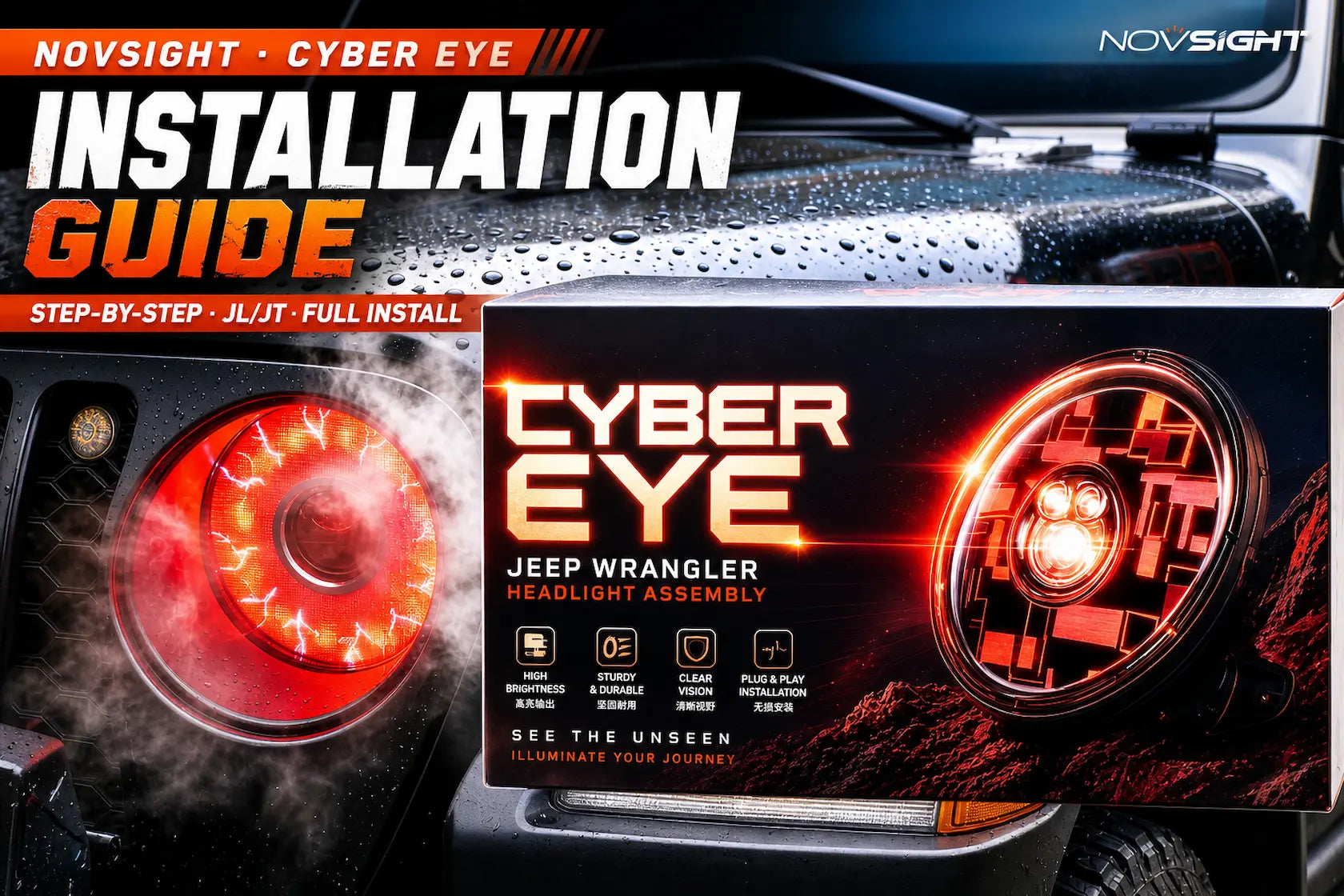

Dejar un comentario
Todos los comentarios se revisan antes de su publicación.
Este sitio está protegido por hCaptcha y se aplican la Política de privacidad de hCaptcha y los Términos del servicio.